Successfully growing on Amazon Seller Central requires regular monitoring of your inventory, messages, and other notifications to ensure your account is always healthy.
Failure to respond to buyer messages, compliance requests, or unauthorized listing changes can have serious consequences. If you’re not checking certain account issues often, you risk missing important changes such as ASINs at risk for suppression or AI-recommended listing updates going live without your knowledge.
On the bright side, Amazon Seller Central provides various backend dashboards that surface the key information you need to be monitoring—if you know where to look.
Below is the comprehensive 11-step daily checklist that our Amazon catalog team uses to protect and scale Seller Central accounts. Following these steps will ensure your listings stay active, your catalog remains accurate, and your Account Health Rating (AHR) stays firmly in the green.
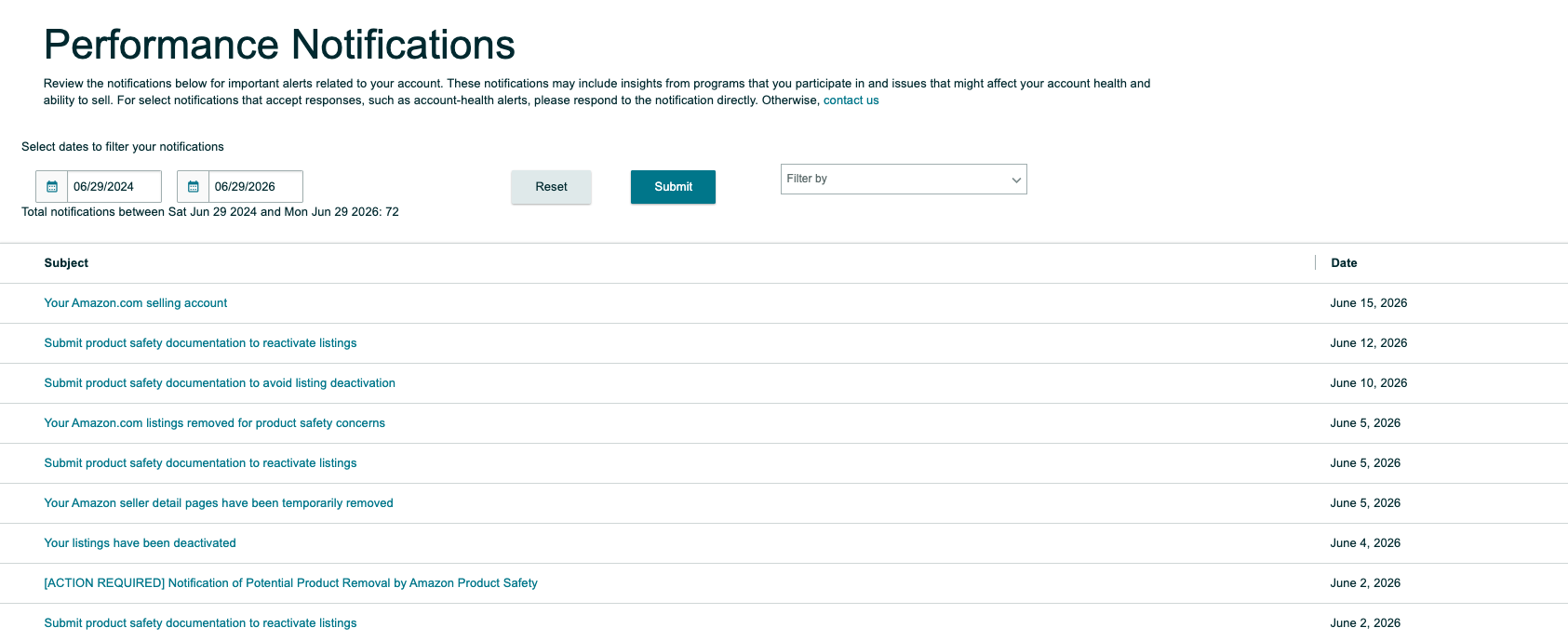
1. Always Read Amazon’s Performance Notifications
Performance notifications are critical alerts sent directly from Amazon regarding your seller account status or listing restrictions.
Where to look: Go to Performance > Performance Notifications. These alerts will notify you of severe issues like deactivated ASINs, variation policy violations, or mandatory product safety documentation requests.
Read these carefully, alert your internal teams, and mark them as read once a resolution plan is in motion.
2. Review Amazon’s Account Health Dashboard
Your Account Health Rating is a numerical score reflecting your adherence to Amazon’s selling policies.
Where to look: Go to Performance > Account Health. Here, you need to look for any red flags under Policy Compliance, such as Suspected Intellectual Property Violations, Product Authenticity Complaints, or Product Safety Issues. If an ASIN is flagged here, it has a high risk of deactivation.
Additionally, you must monitor your Customer Service Performance, specifically your Order Defect Rate (ODR). Amazon requires sellers to maintain an ODR of strictly under 1%. Check this dashboard daily to ensure your account isn’t being hit with A-to-Z Guarantee claims, chargeback claims, or a spike in negative customer feedback.
Finally, if you fulfill your own orders via FBM rather than using FBA, you must obsessively check your Shipping Performance metrics. Amazon requires a Valid Tracking Rate of over 95%, a Late Shipment Rate under 4%, and a Pre-fulfillment Cancel Rate under 2.5%. Falling behind on these shipping targets, especially as a newer seller, is one of the fastest ways to lose your selling privileges.
If keeping up with ODR limits and strict FBM shipping targets is overwhelming your team, consider partnering with an agency that offers dedicated Amazon Seller Performance Optimization services to protect your account from suspension.
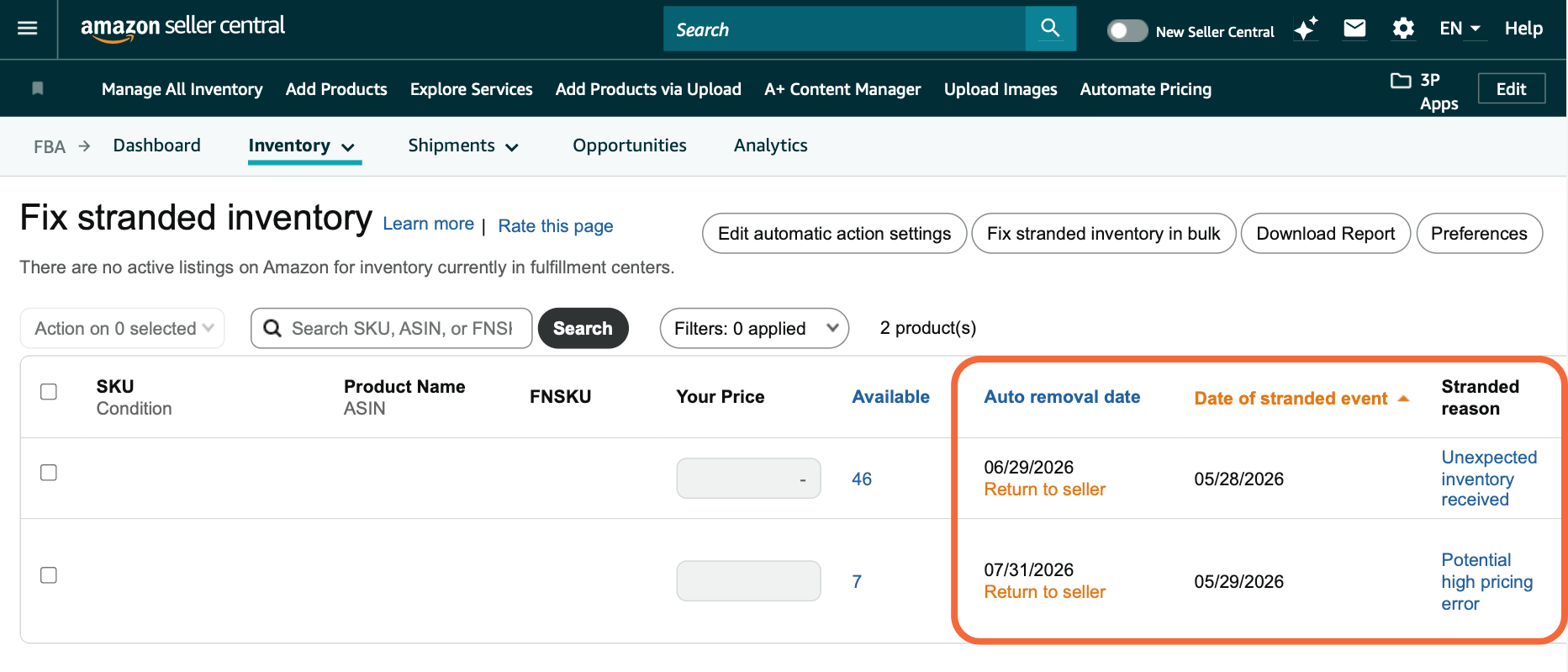
3. Fix Stranded Inventory
Stranded inventory occurs when you have product sitting in an Amazon Fulfillment Center but there is no active offer for it on the marketplace, meaning customers cannot buy it. Common reasons for stranded inventory include barcode errors, missing compliance documents, or pricing errors.
Where to look: Go to Inventory > Fix Stranded Inventory.
Often, you can resolve this by simply relisting the item, acknowledging a pricing alert, or fixing the ASIN mapping.
4. Manage Unfulfillable Inventory
Inventory becomes unfulfillable when Amazon deems it defective, restricts it due to a sudden compliance issue (such as a request for safety documentation), inventory is expired, the product is recalled, or packaging or warehouse damage occurs.
Where to look: Navigate to Inventory > Unfulfillable Inventory.
You have a few choices:
- Submit the proper compliance documents to get the inventory reactivated
- Return the inventory to your own warehouse
- Have Amazon dispose of it
Keep a close eye on this tab; if you rely on automated disposal settings, for example, one easily fixable compliance error could result in thousands of dollars of perfectly good inventory going down the drain.
5. Respond to Buyer Messages Within 24 Hours
Amazon recommends a 24-hour window for sellers to respond to buyer messages as a customer service best practice. Unfortunately for brands, this includes weekends and holidays. Although it is not stated anywhere that waiting longer than this will immediately cause your Account Health Rating to drop, failing to meet this deadline can cause other issues:
- FBA – Since Amazon will take responsibility for fulfillment and order-related messages, those will rarely impact your account health, however any negative feedback on product-related questions can indirectly impact your account health if you also have a poor order defect rate.
- FBM – Once 48 hours have passed with no reply from your team, the customer can submit an A-Z claim on their order or leave negative feedback which will directly impact your account health.
Where to look: Navigate to the “Messages” inbox in Amazon Seller Central.
Pro-Tips to Speed Up Buyer Responses
- Create and save templates for common inquiries, such as delayed shipping, missing parts, or damaged orders. Using a drop-down template ensures your customer service is fast, accurate, and consistent with your brand voice.
- Set up auto-responses that address common questions such as product details, pricing, and warranty information. These will minimize the number of questions that get pushed through to the seller.
If you struggle to maintain weekend and holiday coverage, partnering with our Amazon Customer Service Management agency will protect your metrics.
6. Answer Customer Q&A Emails
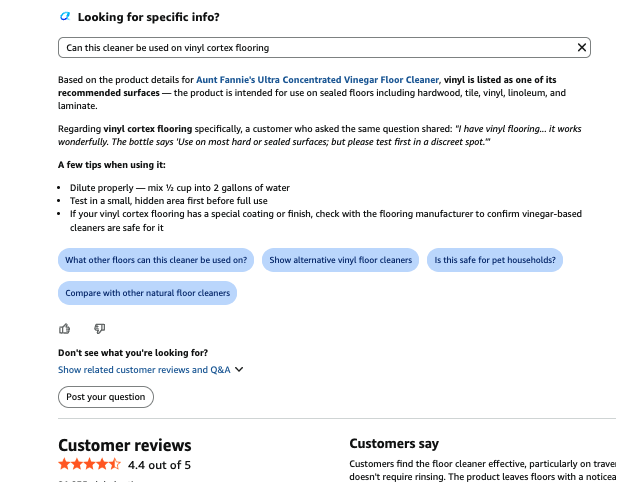
When a customer asks a question on one of your product pages, Amazon will email you a copy to encourage quick responses.
Where to look: Check your connected email inbox daily for messages with the subject line “A customer is waiting for an answer” then click the link within the email to answer directly on the product page.
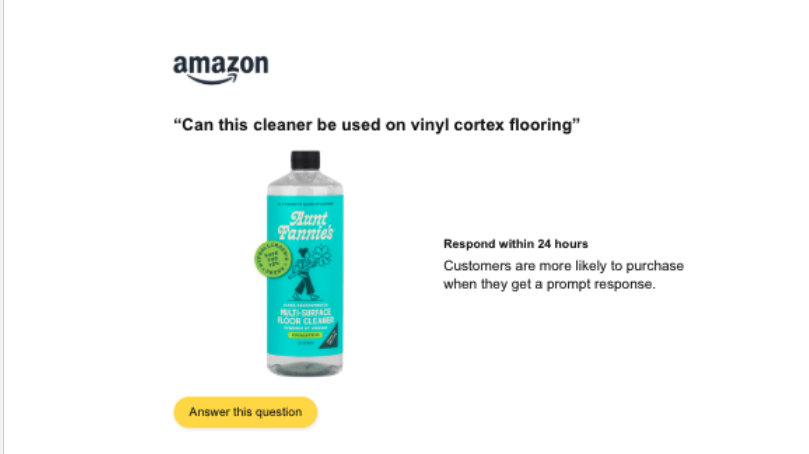
Depending on how much traffic your listing gets, and how quickly you come across the notification and respond, other shoppers may have already attempted to answer the question for you (eg: sharing their specific experiences with your product). Although this is helpful in some cases (potentially lessening how much time you need to spend responding to questions), the reality is that most shoppers will not understand your product, its materials, or use cases as well as you do. In some cases, customers may provide an answer that is inaccurate. It’s always best practice for the brand or manufacturer to respond directly.
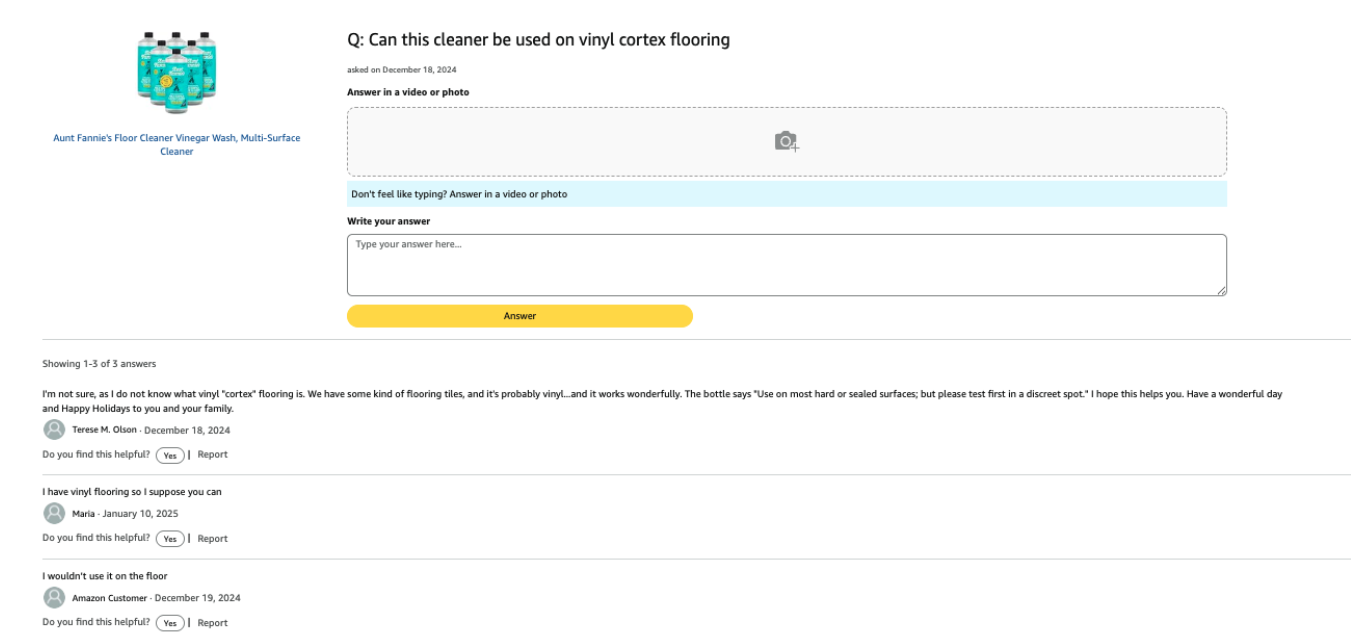
Providing fast, accurate pre-purchase support will help customers convert and provide useful context for future shoppers (or the Alexa for Shopping chatbot) who are browsing your page and considering a purchase.
7. Analyze Amazon’s Voice of the Customer (VoC)
The Voice of the Customer (VoC) dashboard categorizes the health of your Amazon listings ranging from “Excellent” to “Poor” based on customer feedback and return rates.
Where to look: Navigate to Performance > Voice of the Customer.
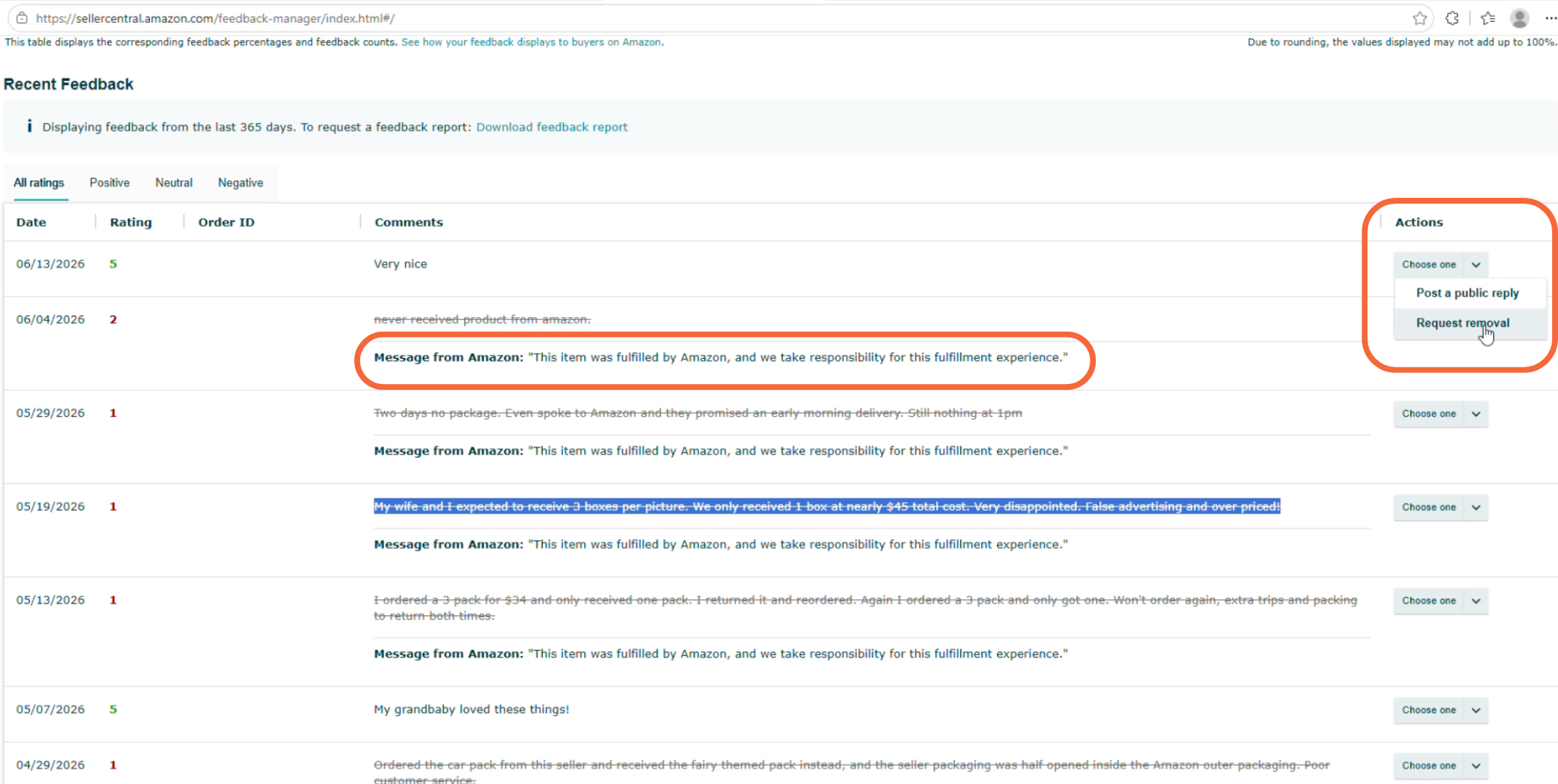
Check your scores to identify trends. For example, are customers frequently receiving the wrong quantity (eg: a 1-pack instead of a 3-pack)? If your orders are Fulfilled by Amazon (FBA) and Amazon determines the error occurred during its fulfillment process, you may be eligible to request the feedback be removed (via the Feedback Manager dashboard). However, if the order is Fulfilled by Merchant (FBM), the brand must handle the resolution directly, such as sending the correct quantity or issuing a refund.
8. Monitor Recent Customer Reviews
While Amazon recently removed the ability for brand representatives to directly email customers who left poor reviews, monitoring this tab is still helpful for knowing which issues shoppers are running into with your products.
Where to look: Go to Brands > Customer Reviews.
Review all ratings under four stars to spot recurring themes. For example, if you notice a sudden spike in reviews mentioning a specific defect, you can pass this intelligence to your R&D team to address and resolve the root issue. Or, if you notice that customers keep mentioning one aspect of the product is confusing, share this with your creative team to clarify in listing imagery and videos.
We also recommend looking at the FAQ section to see whether any negative, yet avoidable, trends are popping up there as well.
9. Audit by Listing Status
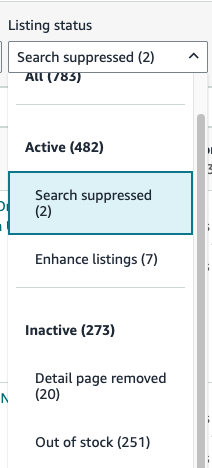
Under Manage All Inventory > All Listings, filter by the “listing status” dropdown to catch any concerning ASINs that haven’t been highlighted on the main Account Health dashboard yet.
A few examples:
- Look at reasons for a listing being removed using the “Detail page removed” and “Listing Removed” options from the drop down to understand, monitor, and avoid that issue from happening on any other listings.
- Filter by the “inactive” listing status to check whether the listing was closed by Amazon for a compliance issue. In this case, you could potentially get the listing reactivated by submitting the required documents or creating a case with Amazon.
- The “search suppressed” filter can be used to see if any products are temporarily hidden from Amazon’s organic search results and browse pages. While these listings remain active and accessible via a direct URL, they lose all organic visibility. This happens when a listing fails to meet Amazon’s catalog standards, usually due to missing product attributes (like size or brand), non-compliant main images, or restricted keywords.
Checking the “listing status” dropdown daily will tell you whether any actions can be taken to avoid listings from being taken down, or get them reopened after the fact.
10. Review Listing Changes
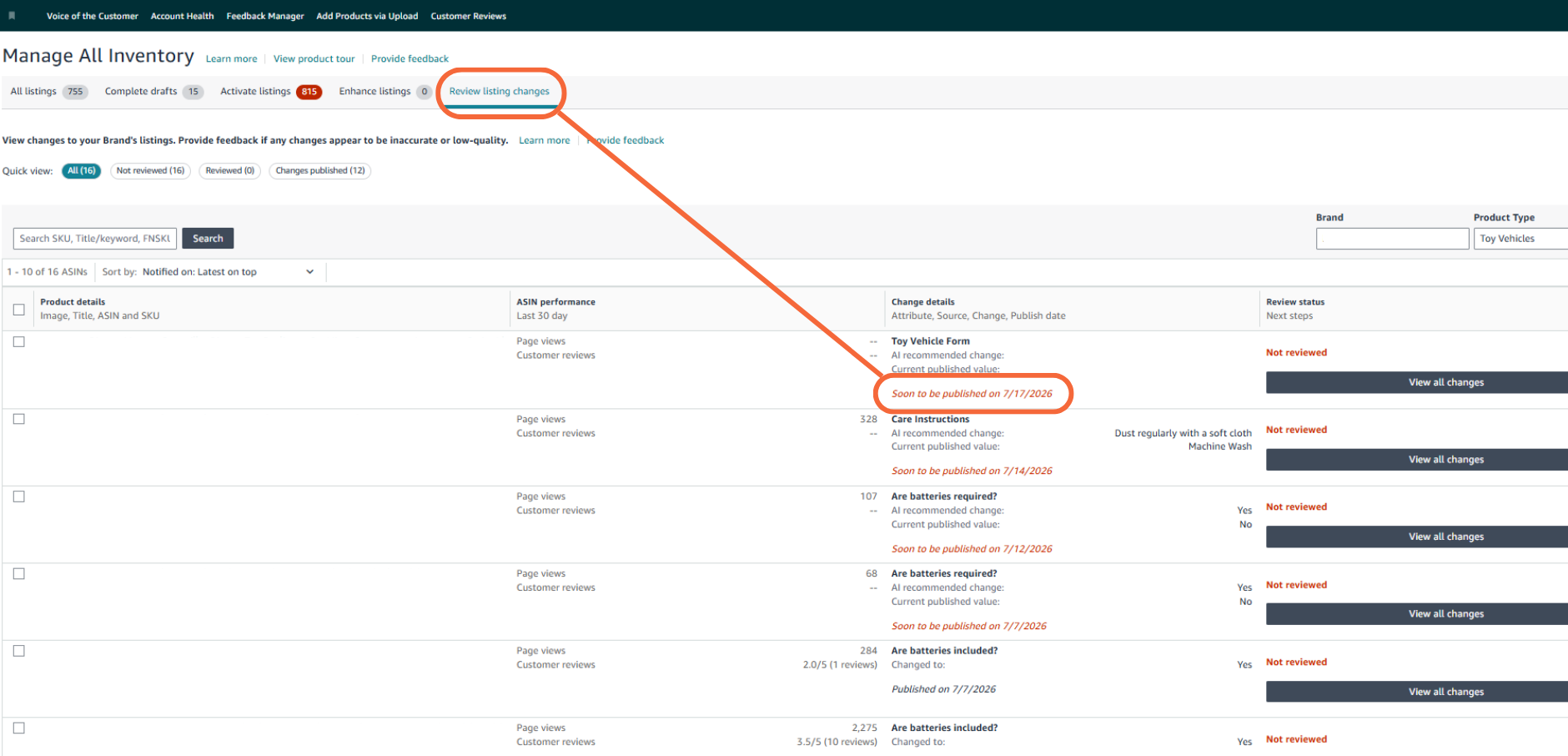
Check your Manage All Inventory dashboard regularly for pending Amazon-proposed edits to your listings. This can include unprompted changes to your product titles, bullet points, and attributes.
Amazon gives you the opportunity to review these changes and either approve them or reject them (note: you must provide a reason for rejection).
Important Caveats
- If left ignored, Amazon will automatically publish these changes to your live detail page.
- In some cases, Amazon will still push the change through even if you previously rejected it.
- Although Amazon provides a publish date, there is no separate notification that confirms whether your rejection was overridden. You will likely only notice if a rejected change was still pushed through by visually checking the live product detail page itself, or by catching the data mismatch during a routine catalog audit.
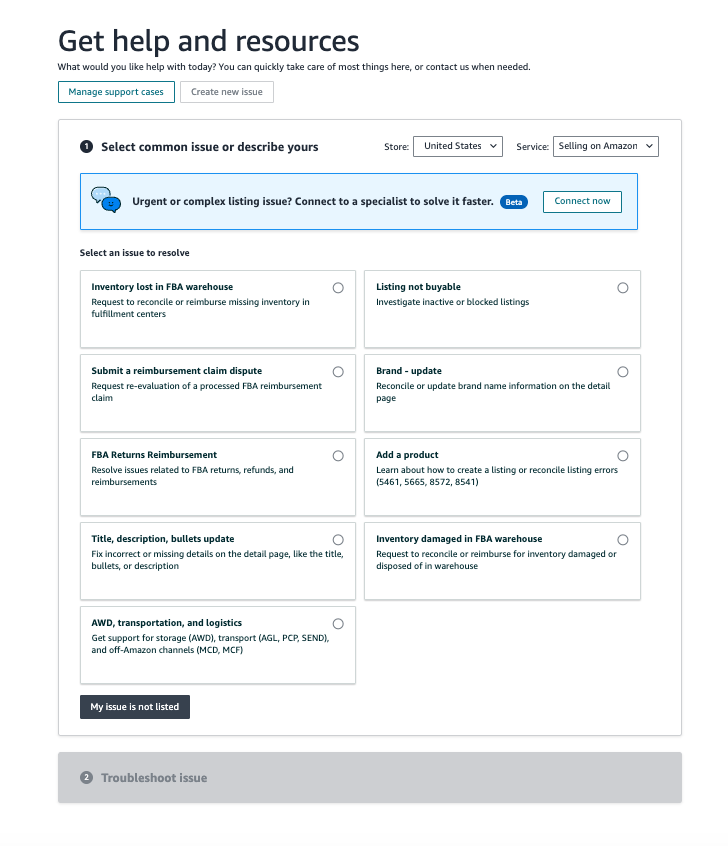
If Needed, Try to Revert Changes with Case Work
Amazon frequently tries to push sellers toward self-service solutions where possible. Your team may need to get creative, such as trying alternative categories or workflows, to resolve issues through case work.
Amazon support has become increasingly difficult as agents nowadays often have less power to make direct catalog corrections than they did in the past. Reversing an unauthorized listing override requires persistence, and unfortunately, a standard removal workflow or a guaranteed reversal is not always possible.
11. Evaluate “Enhance Listing” Recommendations
Similar to the above, the “enhance listings” tab calls out Amazon’s recommended updates for your listings, including AI-generated titles and bullet points. These are optional suggestions. Sellers can review them, choose which to push live (if any), or ignore them. Sellers can also prompt the AI to regenerate copy as needed.
Where to look: Navigate to Manage All Inventory > Enhance Listings.
If you approve a change, remember to update your Product Information Management (PIM) system so that your internal data matches Amazon’s. If you don’t keep your PIM up-to-date, it will be much harder to evaluate whether future listing enhancements are a good idea. This also ties into SEO keyword targeting and brand consistency across listings.
For brands struggling with high SKU counts, partnering with our Large Catalog Management specialists will help maintain your data integrity.
Frequently Asked Questions About Amazon Seller Central Account Health
How often should I check my Amazon Seller Central account health?
You should conduct a baseline account health check every single morning if possible. For example, the 24-hour buyer response period and ASINs at risk for deactivation are just two reasons why a lack of immediate attention may cause damage to your sales or seller account. To ensure a better customer experience, connect with our team for assistance.
What happens if the “Review Listing Changes” notification is ignored?
If you do not manually review and accept or reject Amazon’s proposed listing changes, Amazon’s system will eventually push those updates through to your detail pages automatically. If you don’t pay attention to these changes (stop or approve them before they happen, or notice them after they go live), you could be looking at inaccurate product information on the detail page and/or errors within your PIM system not matching with what is live on the marketplace.
What is Stranded Inventory and how do I fix it?
Stranded inventory means your product is sitting in an Amazon warehouse but isn’t available for purchase. This is usually caused by backend errors like mismatched ASINs, barcode scanning issues, or pricing errors. Simply relisting the item or fixing mapping misalignment should fix the issue.
Keeping Your Amazon Seller Central Account Healthy
Seller Central brands should check accounts daily, covering three main areas:
- Customer Issues: Messages, reviews, and Voice of the Customer feedback
- Account Risk: Account health, performance notifications, compliance alerts, and inventory problems
- Catalog Integrity: Listing changes, AI-generated content suggestions, and unexpected title/bullet edits
Keeping an Amazon Seller Central catalog clean, compliant, and profitable is a full-time job. Between fighting listing overrides, submitting casework to Seller Support, and monitoring daily performance notifications, many Amazon brands find themselves overwhelmed by the sheer operational workload.
If your team is struggling to keep up with daily Amazon account management, Brandwoven can help. Our catalog coordinators act as an extension of your business, conducting these daily audits, resolving issues, managing customer service, and utilizing data systems to maintain a single source of truth for your brand.
Don’t let missed notifications disrupt your Amazon sales flow. Reach out to learn how our Customer Service offerings can reclaim your time and protect your brand’s growth.